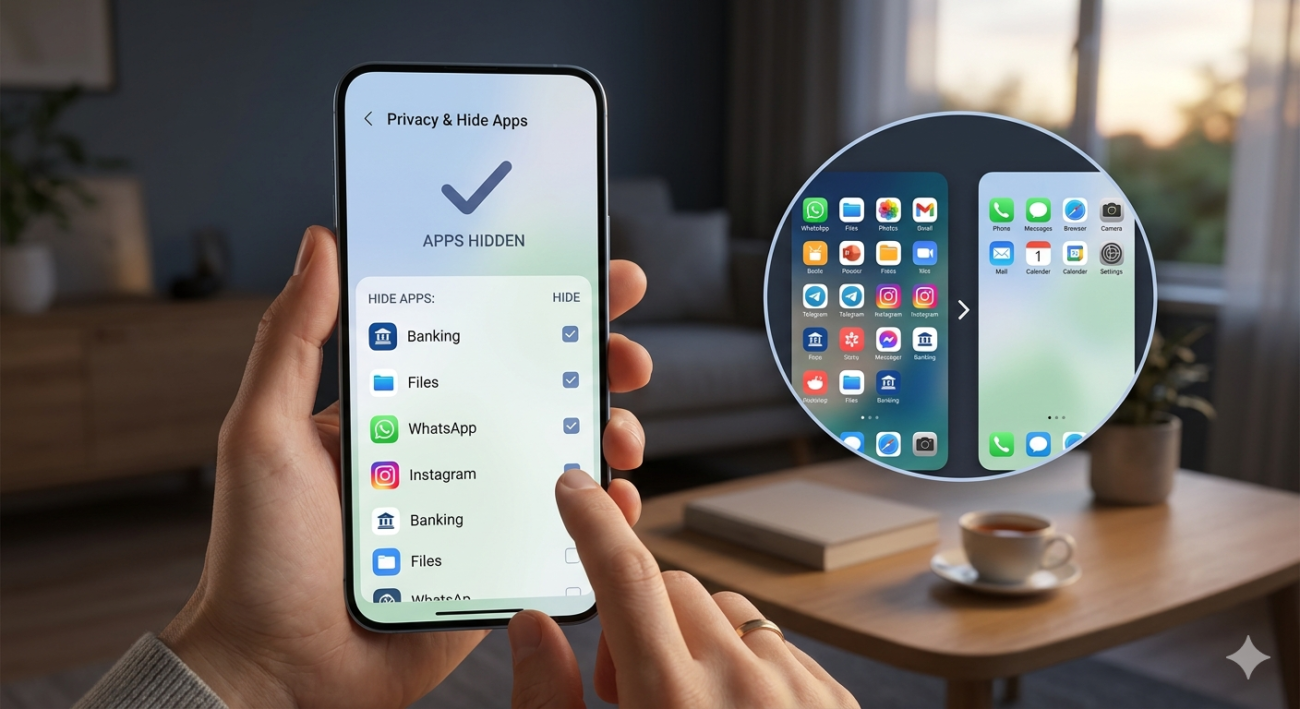
Privacy is very important for everyone who uses a smartphone. You might have personal apps that you do not want others to see. Sometimes, friends or kids borrow your phone to play games. You may want to hide app icons so they don’t open your banking or work tools. Keeping your home screen clean is another great reason. A cluttered screen makes it hard to find what you need. By learning how to hide app shortcuts, you can keep your private life safe. It also helps you stay focused by removing distracting social media icons.
Quick Comparison: Ways to Hide Apps
| Method | Best For | Ease of Use | Privacy Level |
| System Settings | Android & iPhone | Very Easy | Medium |
| App Hiders | Android Users | Easy | High |
| Folders | Quick Fix | Very Easy | Low |
| Disabling Apps | Pre-installed Apps | Medium | High |
How to Hide Apps on an iPhone Easily
If you use an iPhone, you have great built-in tools. You don’t need to delete anything to keep things private. To hide app icons, long-press the icon on your screen. Tap “Remove App” and then choose “Remove from Home Screen.” The app stays on your phone but moves to the App Library. You can also hide a whole page of apps at once. This is perfect if you have many games or work apps. Another trick is using Screen Time settings to restrict certain apps. This makes them invisible to anyone else using the device.
Simple Steps for Android Phone Users
Android phones make it very simple to stay private. Most brands like Samsung or Google have a “Hide Apps” feature. Go to your home screen settings by pressing a blank space. Look for the option that says “Hide apps on Home and Apps screens.” Select the software you want to vanish and tap “Done.” To hide app tools on a Pixel, you might need to use a different launcher. Third-party launchers give you even more control over your icons. It is a fast way to make your phone feel brand new and secure.
Using Secure Folders for Better Privacy
Many phones now come with a special “Secure Folder” or “Private Space.” This is like a digital safe for your phone. When you hide app files inside this folder, they require a password. Even if someone unlocks your phone, they cannot see what is inside. This is the best way to protect banking or health apps. You can even change the icon of the folder to look like a calculator. This “incognito” style keeps your most sensitive data away from prying eyes. It is a smart move for anyone who values true digital safety.
Removing Apps from Your Search Results
Hiding the icon is just the first step for total privacy. Most phones will still show the app if you search for it. You should change your search settings to hide app names from the search bar. On an iPhone, go to Siri & Search in your settings. Turn off “Show App in Search” for the specific tool you want to keep quiet. On Android, you can often do this within the App Info settings. This ensures that a quick search won’t give away your secrets. It adds a thick layer of protection to your device.
How to Use App Hider Software Safely
There are many tools in the Google Play Store designed to help. These “app hider” tools often look like something else. For example, some look like a working calculator or a notepad. You enter a secret code to see your hidden list. To hide app icons this way, you usually “clone” the app inside the hider. Then, you can delete the original one from your main screen. Just make sure to read reviews before downloading any new software. Only use highly-rated tools to keep your data safe and sound.
Managing Your App Library Like a Pro
The App Library is a great place to store things you don’t use daily. Instead of cluttering your screen, let the phone organize them for you. When you hide app shortcuts, they automatically go into categories like “Social” or “Games.” This makes your phone look very organized and professional. You can still find everything by swiping to the very last page. It is much better than having ten pages of messy icons. A clean phone helps you think clearly and find what you need faster.
Best Practices for Phone Security in 2026
In 2026, keeping your phone safe is more than just hiding icons. You should always use a strong PIN or biometric lock. If you hide app icons, don’t forget to lock the apps themselves if possible. Many apps now let you use a fingerprint to open them. This is very helpful for email and messaging services. Also, check your permissions regularly to see who has access to your data. Being proactive is the best way to avoid any digital trouble. Your phone is a big part of your life, so protect it well.
Hiding Pre-installed Apps You Don’t Use
Every phone comes with “bloatware” or apps you never asked for. Often, you cannot delete these completely. The best thing to do is hide app icons by disabling them. Go to your settings and find the “Apps” menu. Choose the one you want to get rid of and tap “Disable.” This stops the app from running and removes it from your view. It also saves battery life and makes your phone run faster. It is a win-win for your screen and your phone’s performance.
Creative Ways to Organize Your Icons
You can get creative with how you keep your screen private. Some people use “invisible” icons or blank widgets to move apps away. You can also put your private apps inside a folder on the second page. Name the folder something boring like “Manuals” or “System Files.” Most people will never click on a folder that looks uninteresting. When you hide app icons this way, you are using simple psychology. It is a clever trick that doesn’t require any special tech skills or extra downloads.
The Future of Mobile Privacy and Stealth
Technology is getting better at protecting our personal space. In the future, we might see “ghost modes” that change the whole phone layout. For now, knowing how to hide app shortcuts is your best tool. As AI gets smarter, phones will likely suggest which apps to hide for you. Always stay updated on your phone’s latest software versions. These updates often include new security features that make hiding things even easier. Staying informed is the key to being a tech-savvy user in this modern world.
Conclusion
Hiding apps is a simple way to make your phone safer and cleaner. Whether you use an iPhone or an Android, you have many choices. You can use built-in settings, secure folders, or even special hider apps. The most important thing is that you feel comfortable with your device. Don’t let a messy screen or privacy worries slow you down. Start today by choosing one app to hide app style and see how much better your phone feels!
Frequently Asked Questions
1. Does hiding an app delete its data?
No, when you hide app icons, the data stays safe. You are only removing the visual shortcut from your home screen.
2. Can I still get notifications from a hidden app?
Yes! Most of the time, notifications will still show up. If you want total privacy, you should turn off notifications in your settings too.
3. Is it free to hide apps on Android?
Yes, most Android phones have a free “hide” feature built right into the home screen settings.
4. How do I find an app after I hide it?
You can usually find it by searching the name in the search bar or looking in the “App Library” or “All Apps” menu.
5. Can someone still find my hidden apps?
If they know where to look in the settings, they might find them. For extra safety, use a password-protected “Secure Folder.”
6. Will hiding apps save my battery?
Hiding the icon doesn’t save battery, but “disabling” the app does. Disabling stops the app from working in the background.
